Last updated on May 14, 2026
- Select the checkbox to add one or more plans.
- The selected plan is highlighted.
- Select All checkbox to add all plans.
- A message is displayed if the carrier limits the number of plans for selection.
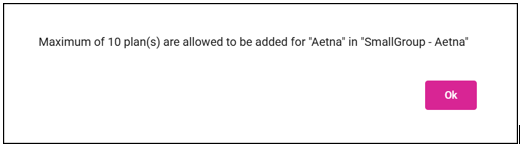
- Note: Selecting all plans may result in an extended processing time for generating the quote output.
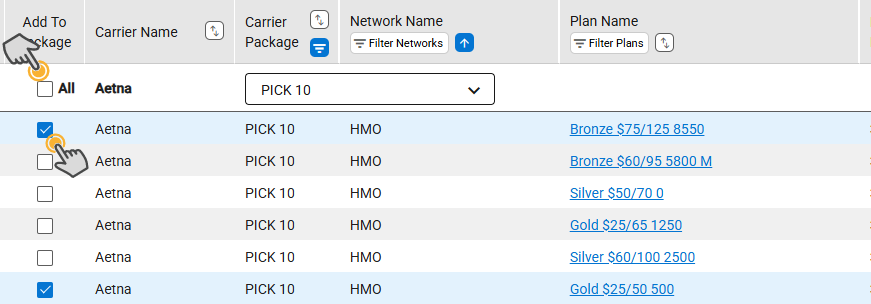
- The plans are added to the selected package in the order of selection.
- Note: The bottom panel moves down to display the package with the selected plan.
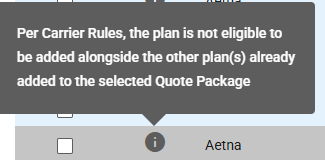
- Once a plan is selected, any plans that are incompatible with the chosen plan will be unavailable for selection. This policy only applies to Comparable Packages (New).
- If a plan is deselected from within the bottom panel, the plan is removed from the package.
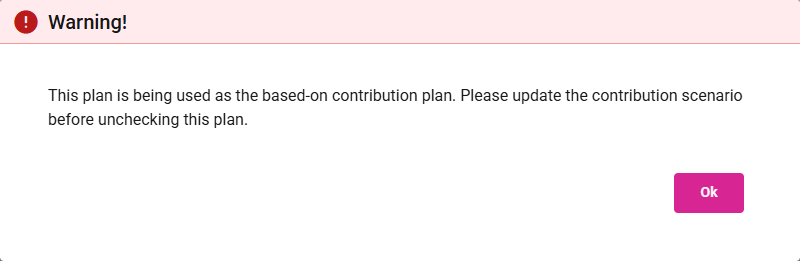
- When a deselected plan is designated as the Contribution basis plan, a warning message will appear advising that the contribution plan requires updating.
- View and Select Plans by Carrier Package
- The Plan Maintenance team links plans to carrier packages. There are multiple ways to view the plans associated with the carrier package.
- Choose a Carrier Package from the Show All Packages dropdown to see all plans related to that Carrier Package.
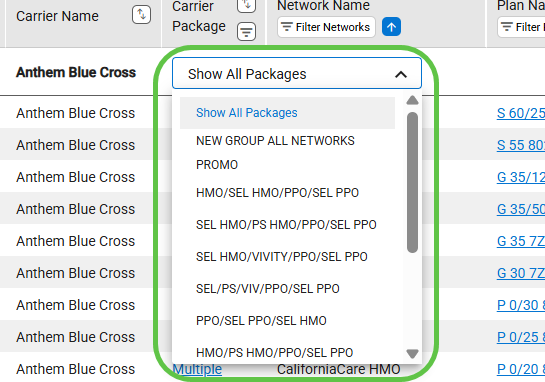
- Click the Filter icon in the Carrier Package column.
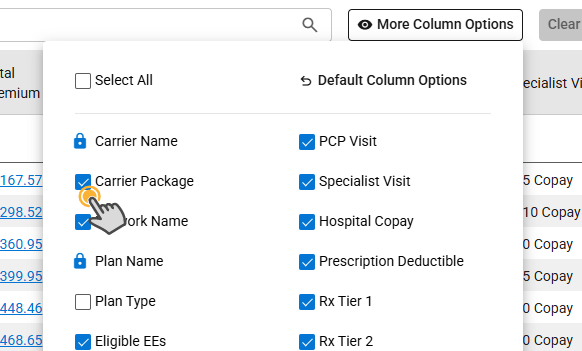
- Note: Add the column using More Column Options if it is not already visible in the grid.
- Carrier Package Limit
- Some carrier packages limit how many plans you can choose.
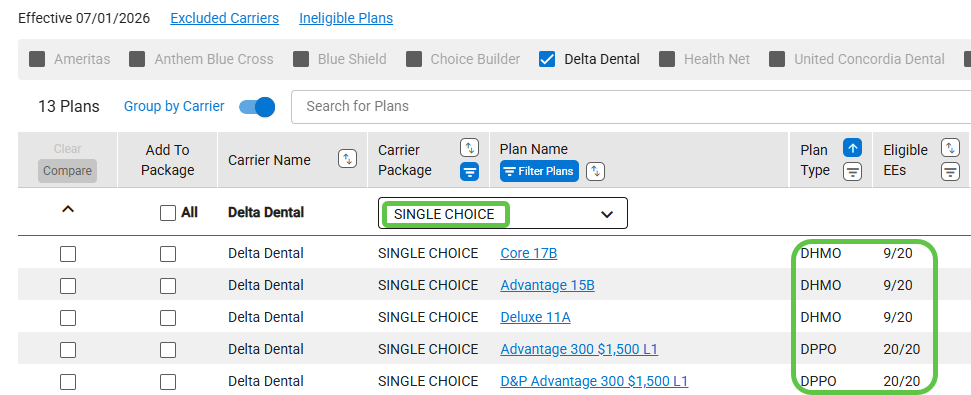
- If the selected plan does not provide coverage for all employees, a notification will be displayed.
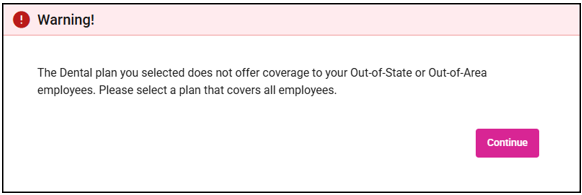
- When you click Continue, the plans grid updates to show only those plans that are available to every employee.
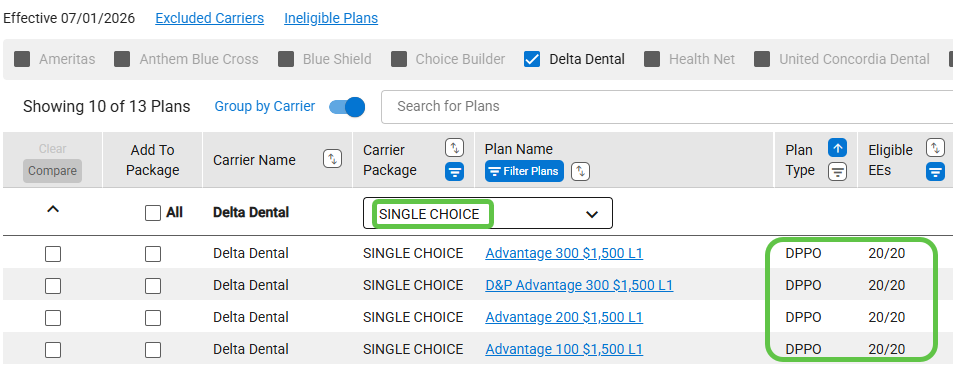
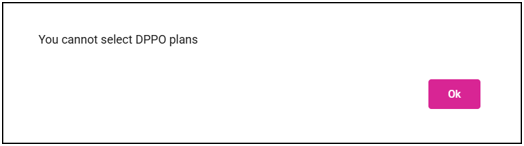
- Dental DPPO Plan not available
- If you receive this message, select a different Carrier Package.