Last updated on May 1, 2026
- Click Add Employee(s) to add employees manually.
- Select one of the numbered options (1, 2, 3, 4, 5) to insert the corresponding number of employee rows.
- Additional rows will be added to the bottom of the existing entries, when adding more later.
- Enter a number (e.g., 6, 7, 9, 10, 50) and press Enter to add that many employee rows.
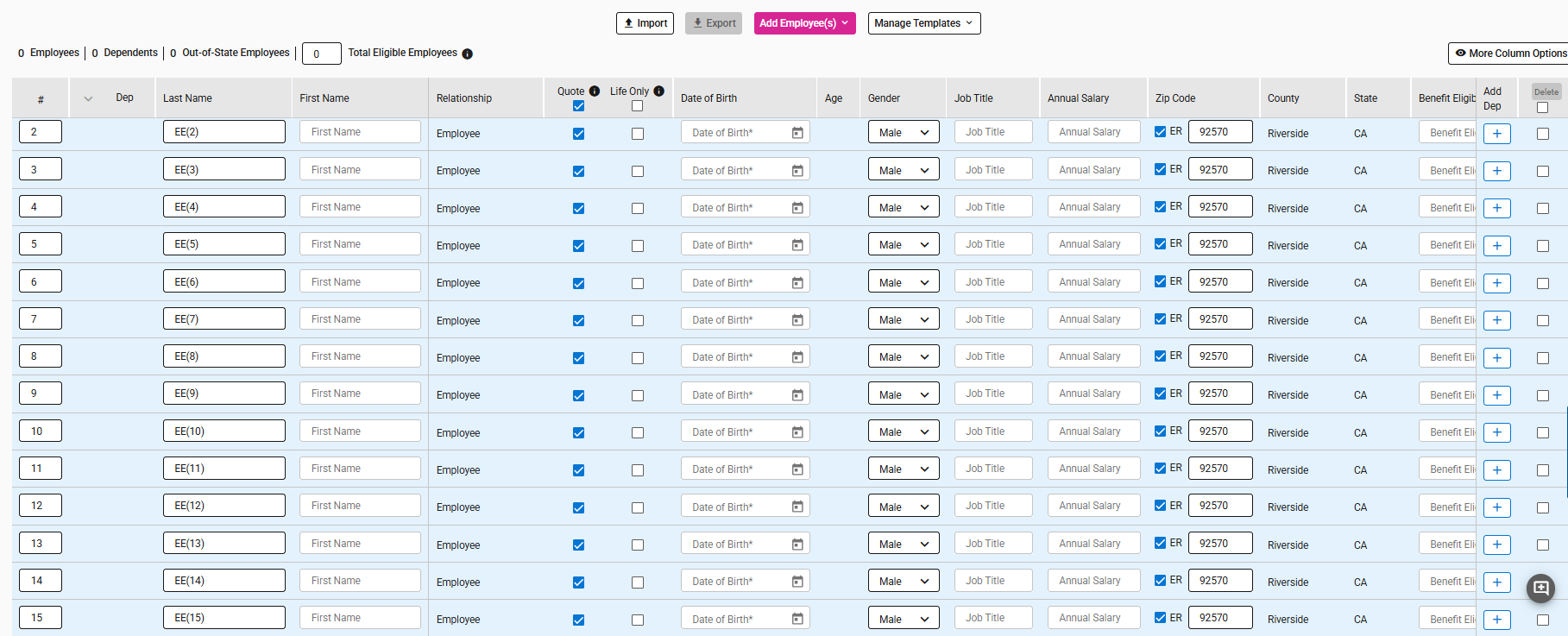
- After adding the rows (shown in blue), you will need to input the employee, spouse, and dependent details for each one manually.