Last updated on May 4, 2026
- Employees are ordered according to the import file or manual entry.
- To arrange employees alphabetically by their last name, select the arrow icon next to Last Name to sort them in either ascending or descending order.
-
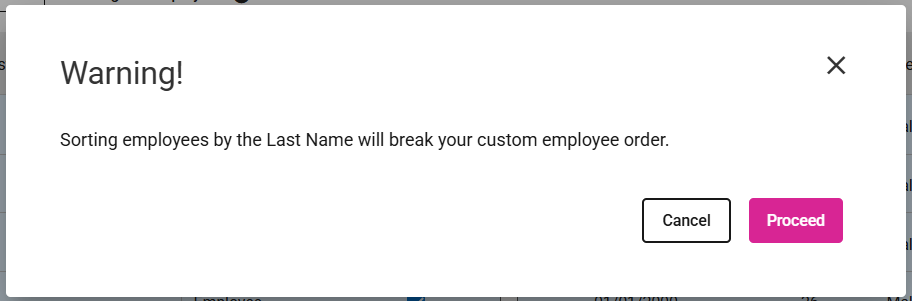
- A message appears if employees are sorted by a custom order using the # field, or an import file.
- Clicking Proceed displays a message that employees are sorted by last name.
- Selecting the Cancel button ensures that no modifications are made to the employee order.
-
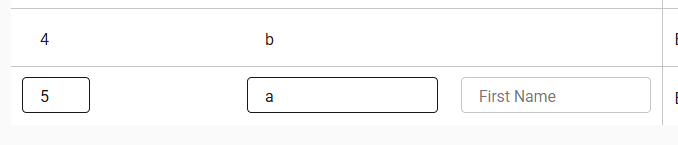
- To move an employee, enter the new row number in the # field and press Tab.
- Original Number:
- New Number:
- Original Number:
- A notification confirming the employee has been moved successfully is displayed.
- Note: If the entered number is greater than the number of employees, the employee will be placed at the bottom of the census. Example: 4 employees, entered 99 for EE2, EE2 is moved to EE4.