Last updated on May 11, 2026
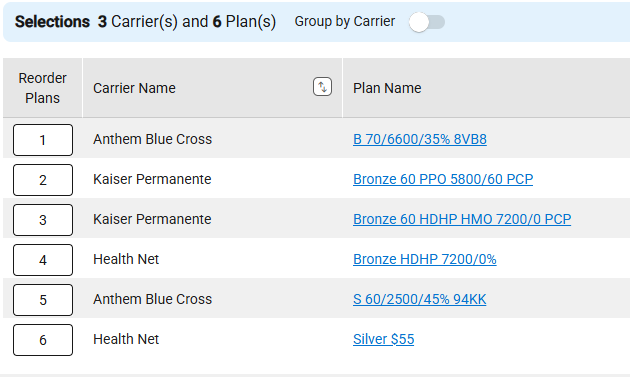
- Once one or more plans are selected, the Selections (Top) Panel updates to show the number of selected plans and their details.
- Note: The plans are added to the Selections Panel in the order they are selected.

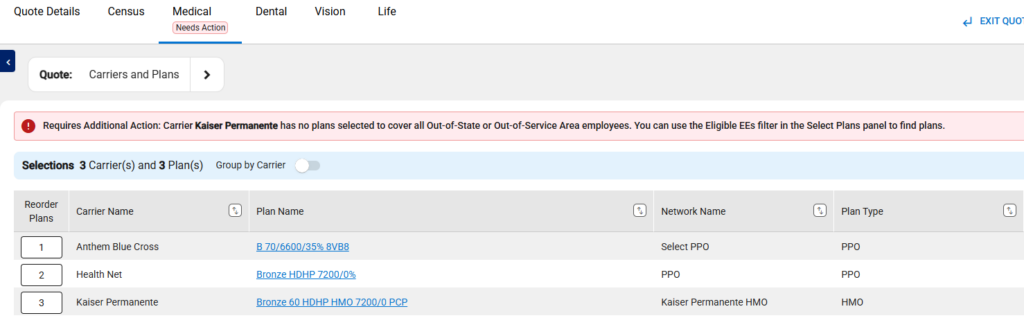
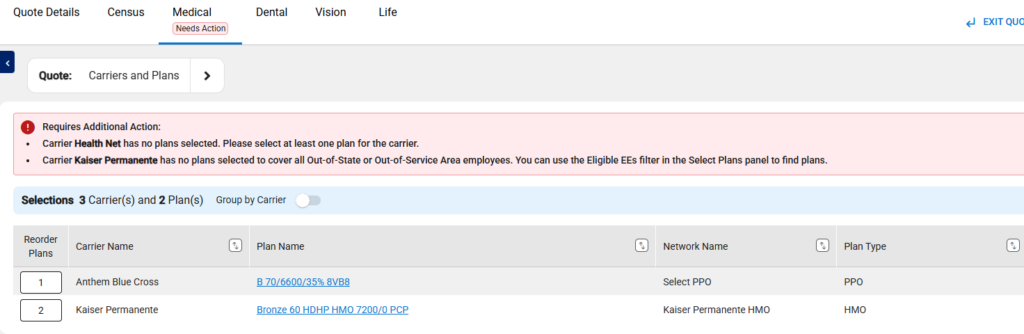
- The tab shows “Needs Action,” and a banner message appears when no plans are selected for the chosen carriers.
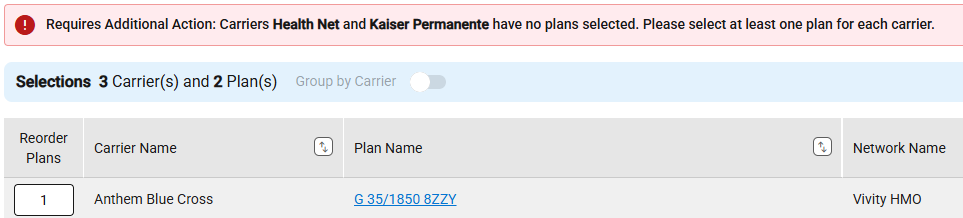
- The tab displays “Needs Action,” and a banner message appears when selected plans do not cover all the employees being quoted.
- Multiple messages can be shown on the banner.
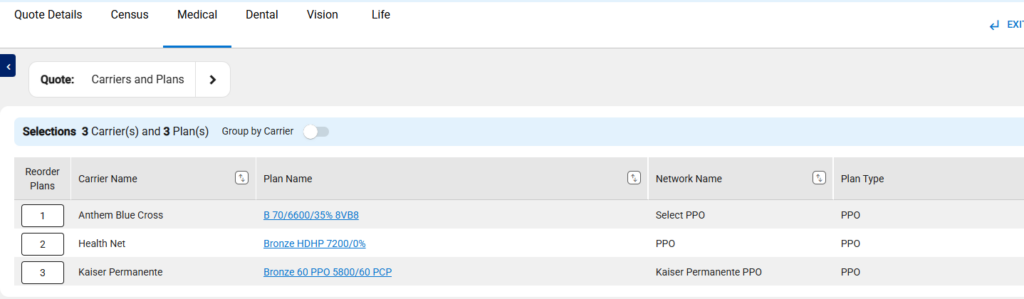
- The “Needs Action” text and banner are removed when selecting plans that cover all the quoted employees for each carrier.
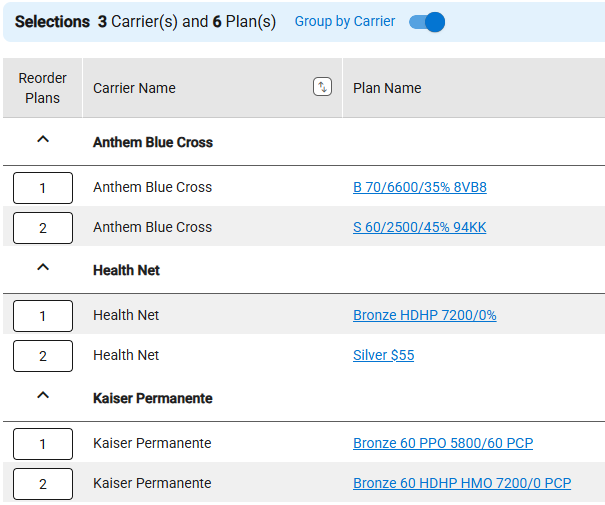
- The chosen plans can be grouped by carrier.
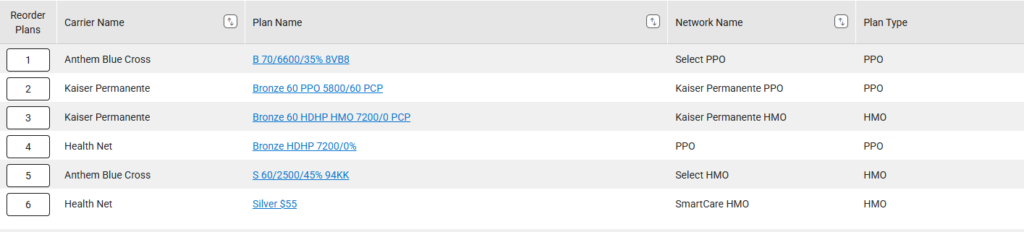
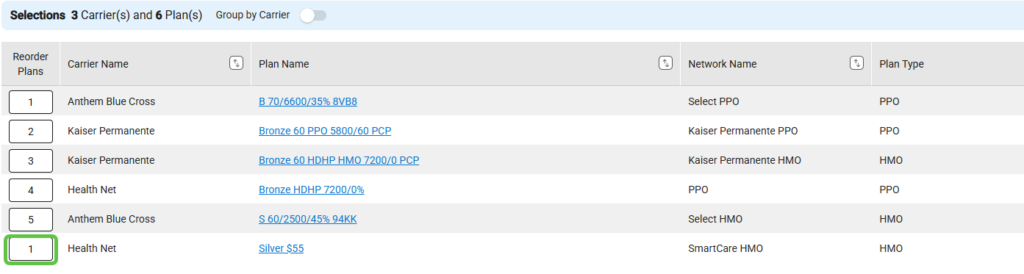
- The plans can be reordered by entering the desired row number and tabbing out of the field.
- Original Order
- Enter Number
- Plan Moved
- There is no confirmation displayed. Upon tabbing the plan is moved.
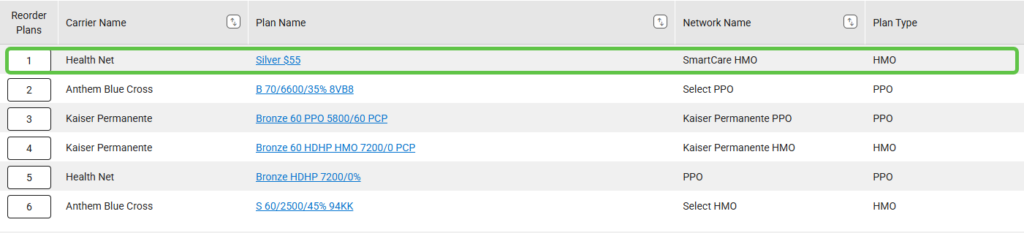
- Original Order
- You can delete plans by selecting the checkbox next to each one and then clicking the “Delete” button.
- To delete all plans at once, select the checkbox below the “Delete” button and then click the “Delete” button.
- There is no confirmation displayed. Once delete is selected, the plan is removed.