Last updated on May 7, 2026
- Tabs:
- Select Plans
- Set Contribution – Available upon selection of a carrier and a plan.
- Assign Plans – Available upon selection of a carrier and a plan.
- Package Name:
- Shows the default name for the chosen placeholder package.
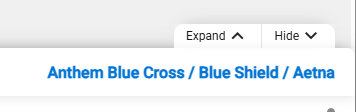
- When you select one or more carriers, the system displays the Carrier Name(s) for the chosen package.
- Note: Multiple carrier selection for a package is only available for Medical coverage (Wrap Package).
- Shows the default name for the chosen placeholder package.
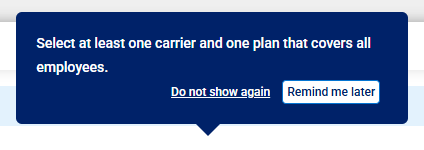
- A banner message asks you to select one or more carriers to view plans.

- Note: This will be changed to a help tip.
- A banner message indicating that you selected to include ineligible carriers is shown.
- Quote Effective Date:
- Add Provider Button:

- Click button to search and add the employee’s medical providers and facility.
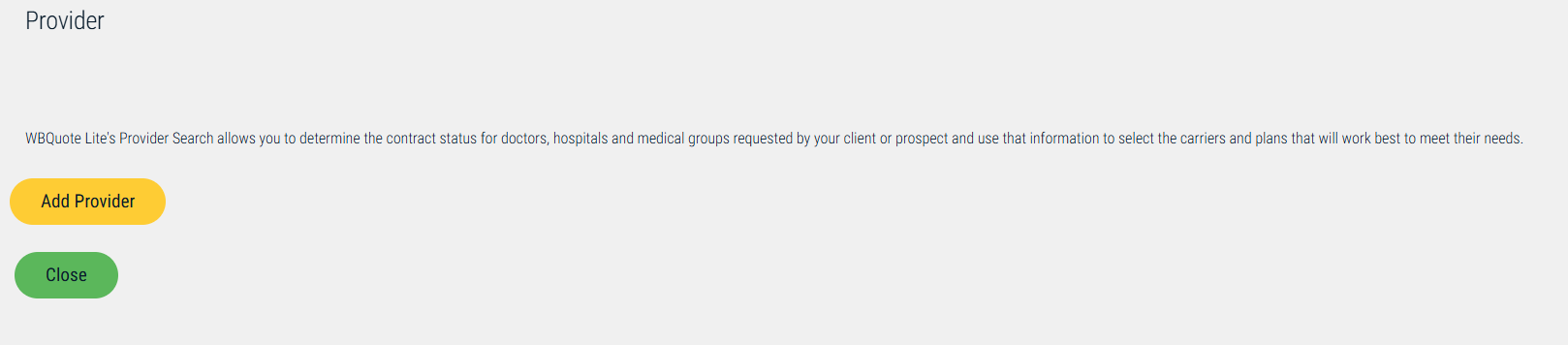
- Note: The “Add Provider” option does not apply to dental or vision. This is a separate application that has not been updated.
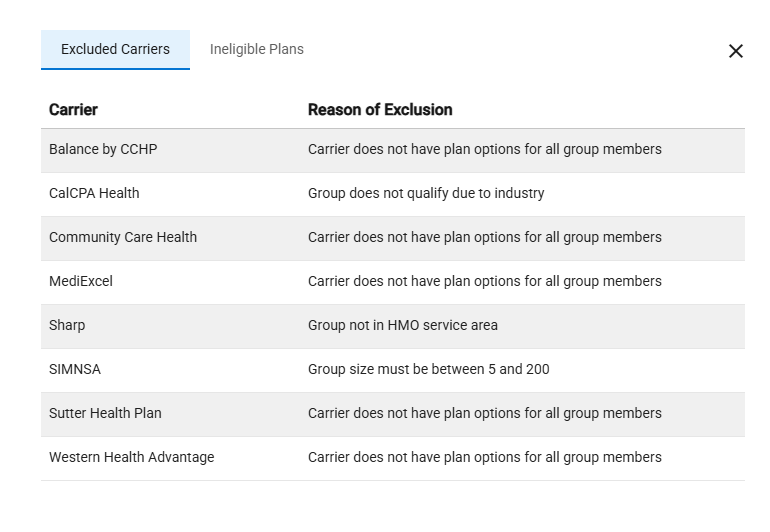
- Excluded Carriers Link:

- Click to view the carriers and reasons for their unavailability for the quote.
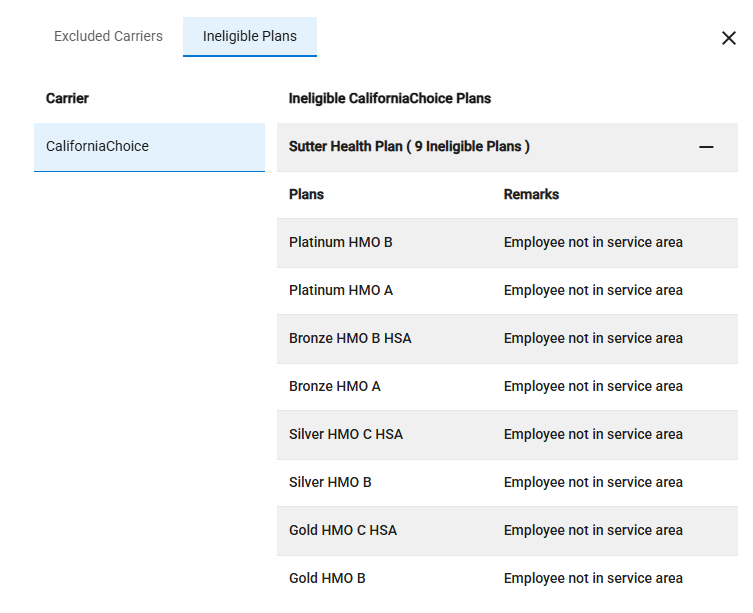
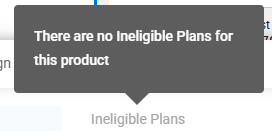
- Ineligible Plans Link:

- Click to see the plans and reasons the carriers are unavailable for the quote.
- Note: If there are no ineligible plans for the selected carriers, then the Ineligible Plans link is disabled.
- Use the +/- to expand and collapse networks and plans when available.