Last updated on May 15, 2026
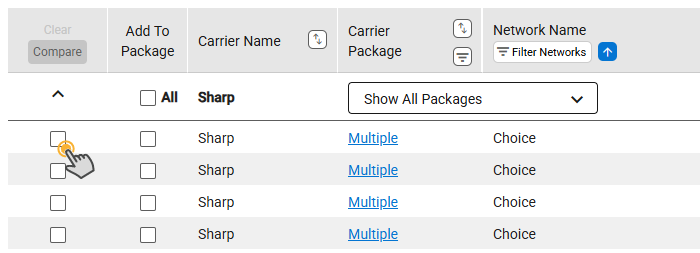
- Select at least two checkboxes in the Compare column.
- Click the Compare button.
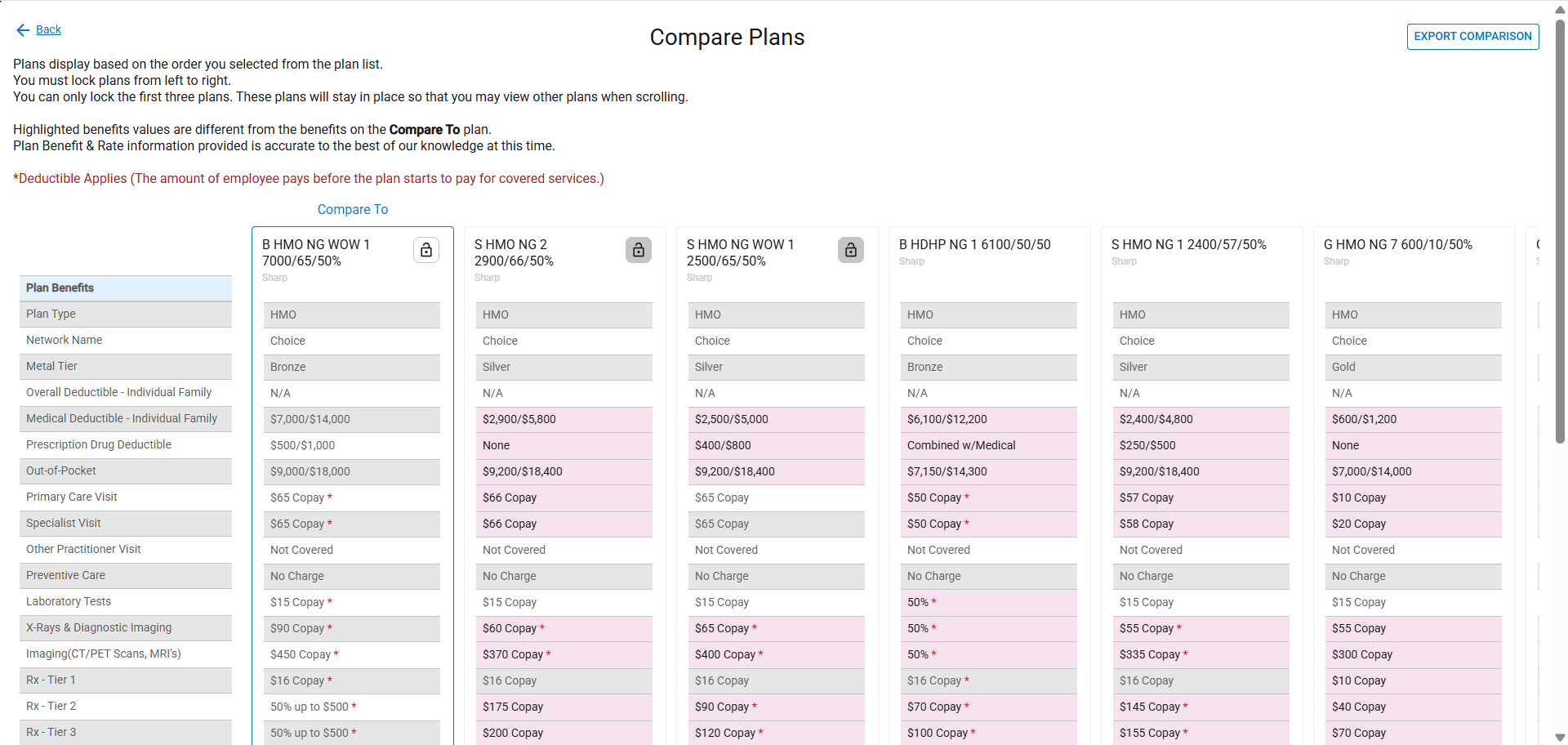
- The Compare Plan screen appears.
- The benefits with differences between plans are highlighted.
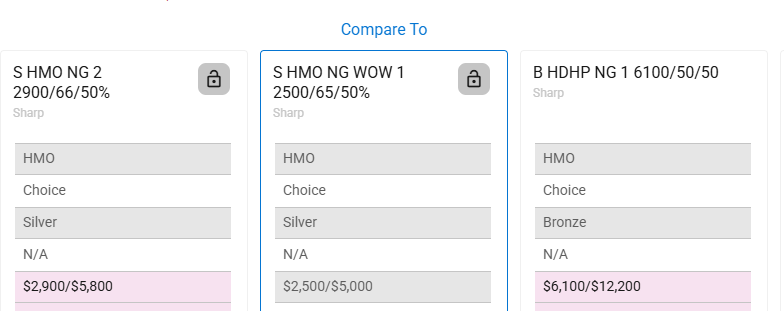
- Choose a different plan to use as the Compare To plan.
- The “Compare To” label has been moved to the chosen plan, and the differences for the other plans are highlighted.
- Use the scroll bar on the right side of the screen to view all benefits.
- Scroll to the bottom of the screen to see the number of employees and group rates.
- Use the lock icons to lock up to three plans.
- Note: Only the first three plans can be locked.
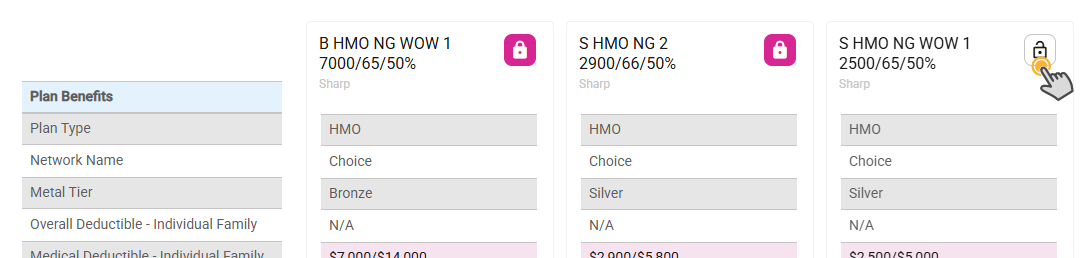
- Scroll to the right to view additional plans.
- Click Back link to return the product line coverage page.
- Click the Export Comparison button.
- Default Selections:
- Group Rates – Include Group Rates
- Export As – PDF and Excel
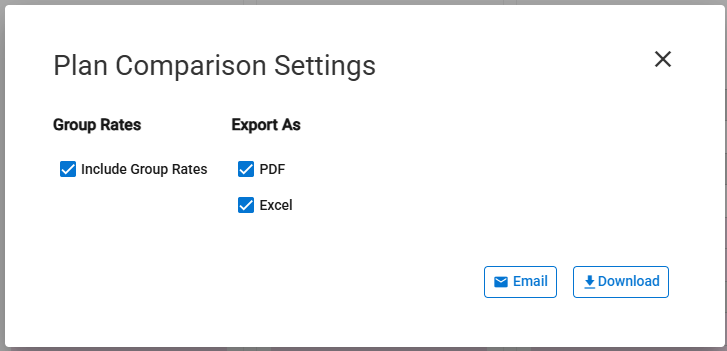
- The Group Rates will be included when selected.
- Deselect if not needed.
- Export As
- Deselect file type if not needed.
- Select Email to email the Plan Comparison.
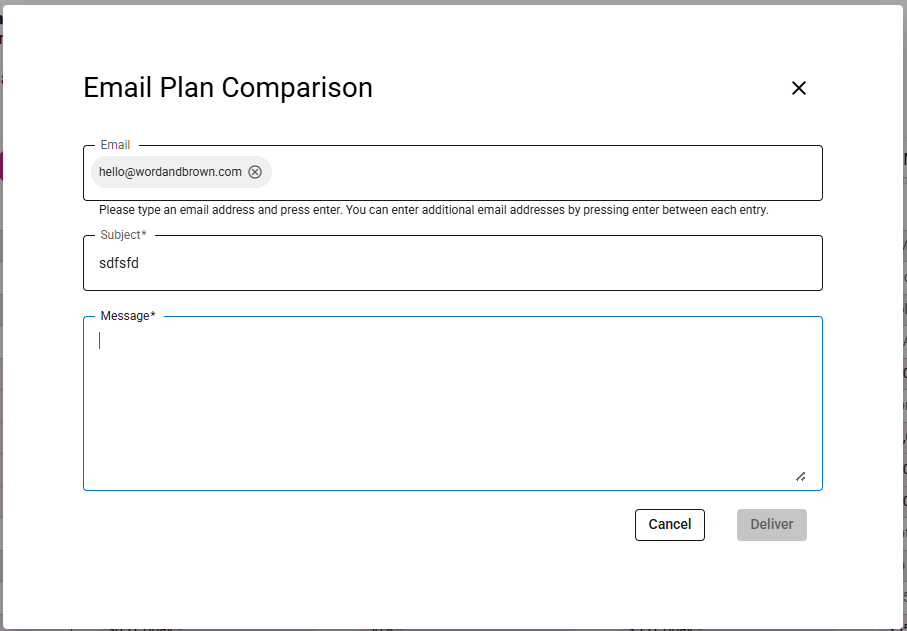
- Different and additional emails can be entered.
- The Subject can be updated and is required.
- A message is required.
- Click Cancel to cancel.
- Click Delivery to send email.
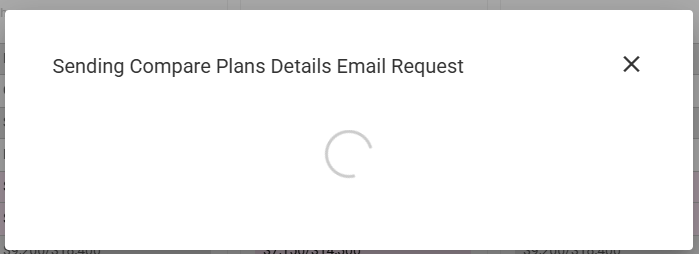
- A message appears until the file is emailed.
- Select Download to download the Plan Comparison.
- A message appears until the file download finishes.
- Note: The file download may depend on your browser settings.
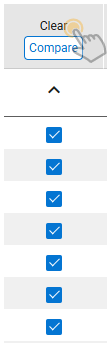
- Click Clear link to uncheck the selections.