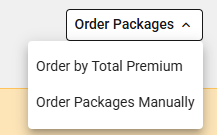
Last updated on May 12, 2026
- Choose “Order Packages Manually” to arrange the packages in the order you prefer.
- The Order Packages Manually screen is displayed.
- Options:
- Expanded View: The default setting, showing plan details.
- Collapsed View: Hides plan details.
- Back to Coverage: Brings you back to the Medical Coverage page.
- Instructions: Click “Close” to dismiss the banner.

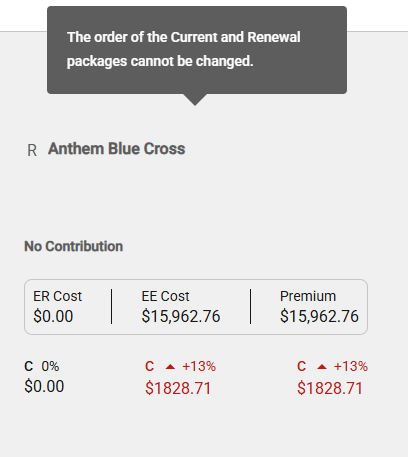
- The Current and Renewal packages are displayed if included in the quote.
- A tooltip displays indicating the order cannot be changed.
- The Comparable Packages are displayed in the Expanded View with an assigned number.
- Original Order:

- Collapsed View:
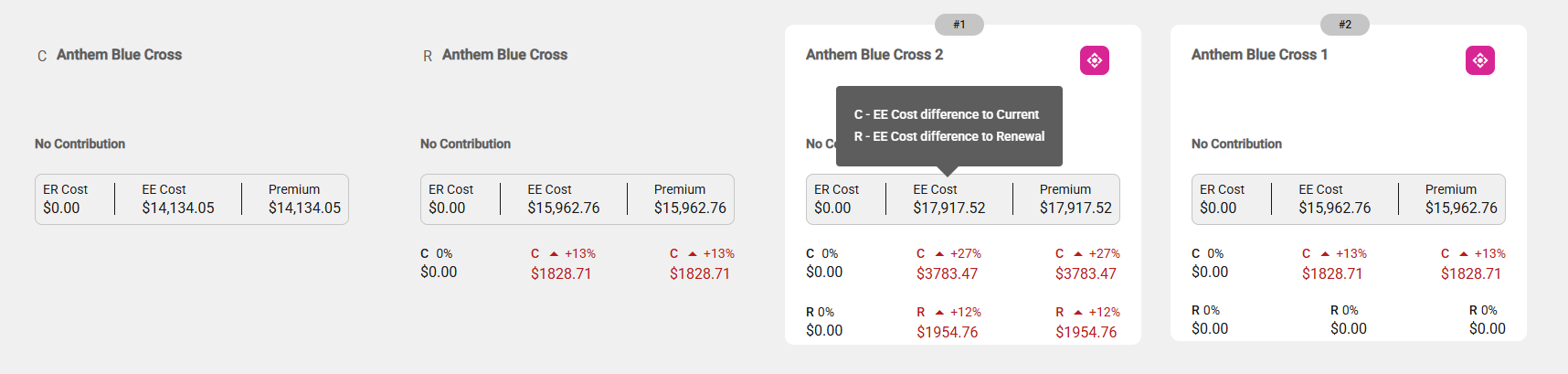
- Click on the diamond icon
 and drag the package to the desired location.
 - Continue until all comparable packages are ordered as desired.
- New Order:
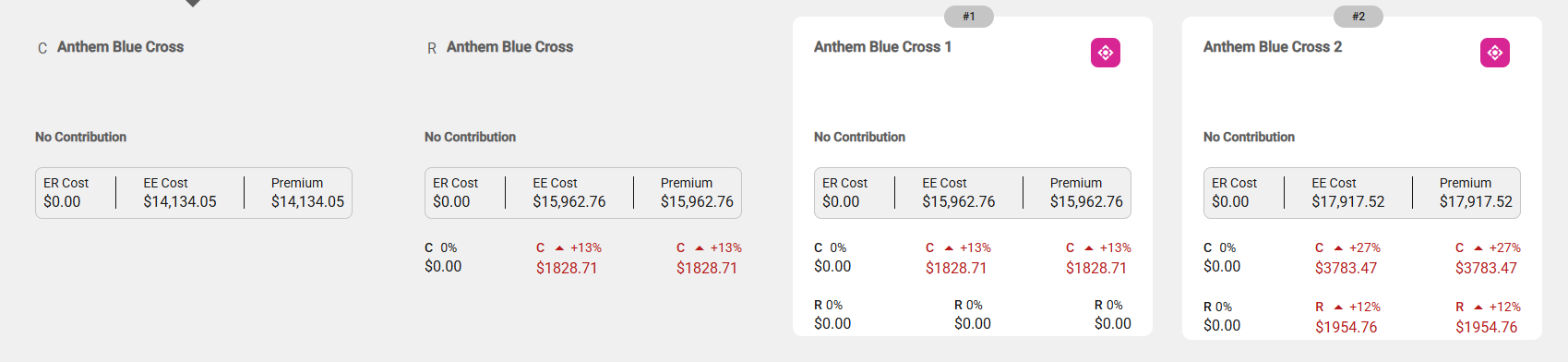
- You can choose to save the order or undo all changes.
- When you click Save, the order is stored and the coverage page appears, showing the packages in their updated sequence. A confirmation message is displayed.
- Clicking Undo All Changes restores the packages to their original order.