Last updated on April 30, 2026
Attention: The Impersonate A Broker button is available for Word and Brown employees with the appropriate security role.
Note: If the button isn’t available, you might not have the necessary permission. Please reach out to the IT team.

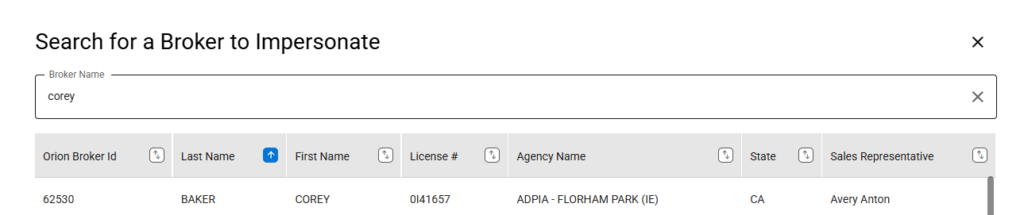
1.1 Search for a Broker to Impersonate
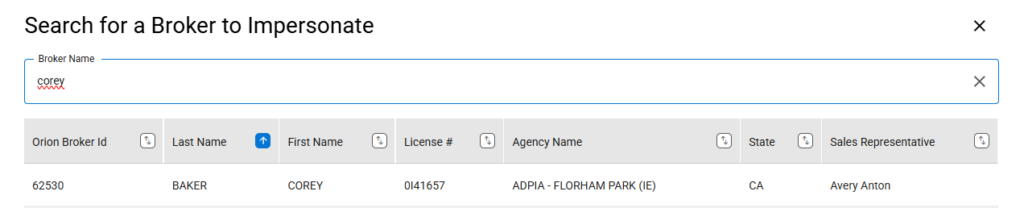
- The Search for a Broker to Impersonate window is displayed upon clicking the button.
- The search is initiated automatically when you enter text in the field.
- The broker names that match your entry are displayed.
- If no brokers are found, no brokers are found message is displayed.
- The default sort of the results is by the Last Name in ascending order.
- Click the Up/Down Arrow button twice for the Last Name column to reset the default sort.

- You can change the order of the search results by any of the columns. You can only sort by one column at a time. The blue icon shows which column is being used for sorting.
- Click “X” to clear the broker search or select the text and enter a new name.
- To discontinue the broker search, select the “X” located in the upper right corner to exit.
- Click the broker’s row to impersonate them.

1.2 Impersonating Broker
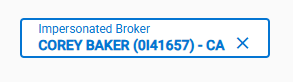
- When you select a broker, the label on the ‘Impersonate A Broker’ button updates to show that broker’s name, license number, and state.
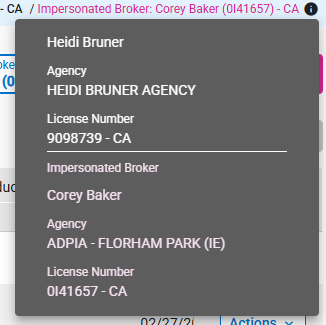
- The impersonated broker’s details are displayed in the upper right section of the Dashboard, alongside your information.
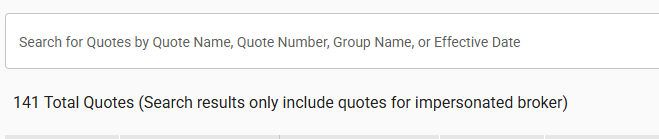
- The quote total now reflects those associated with the impersonated broker’s account. Use the search to find a quote.
- To discontinue impersonation, select the “X” located in the right corner of the button.