Last updated on May 11, 2026
- When there are out-of-state and/or out-of-area employees and the Based on is set to Selected Plan, a different plan must be selected if the chosen plan does not cover all employees.
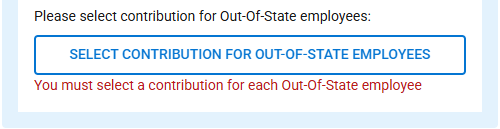
- Click the “Select Contribution For Out-of-State Employees” button.
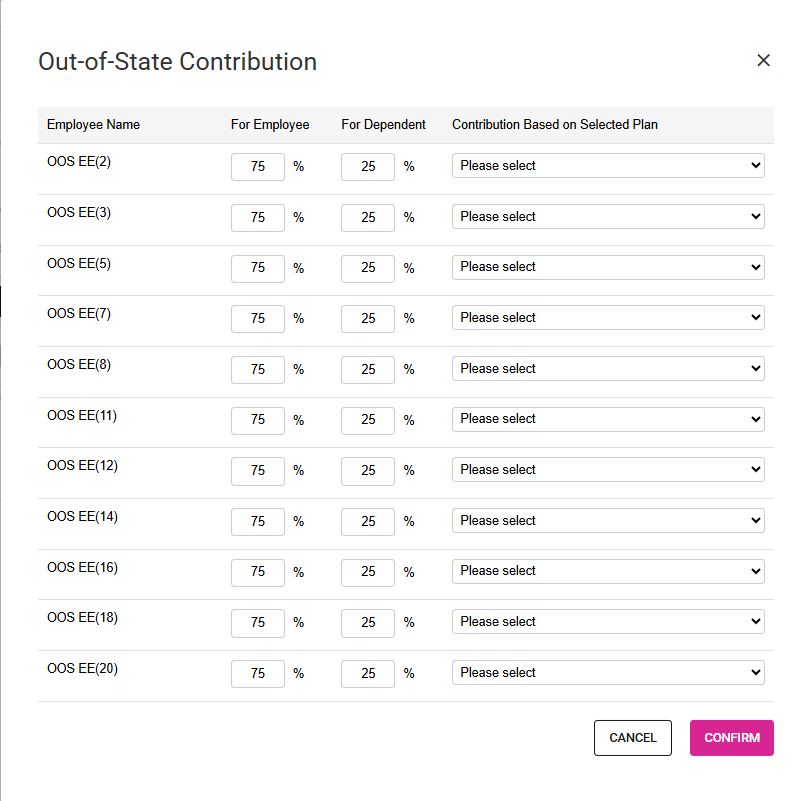
- The percentage or dollar amount will be shown and can be adjusted.
- The plan must be selected.
- When a plan is selected, it is assigned to all employees.
- If multiple plans are available, a different one can be assigned.
- The “Employee pays 100% for dependent” option can be selected for an employee.
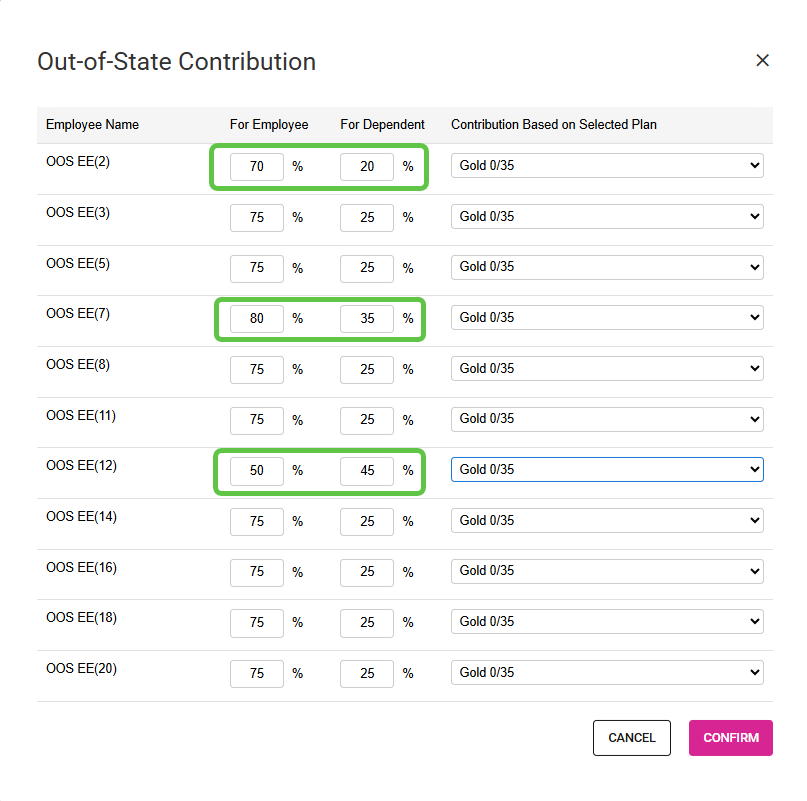
- Percentage Contribution Type:
- The percentage can be changed for one or more employees and dependents.
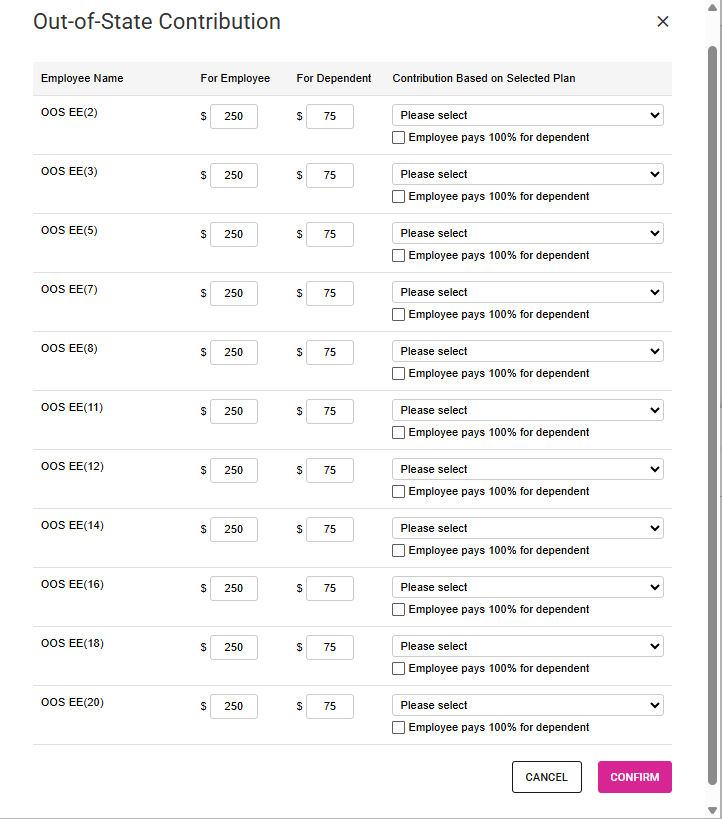
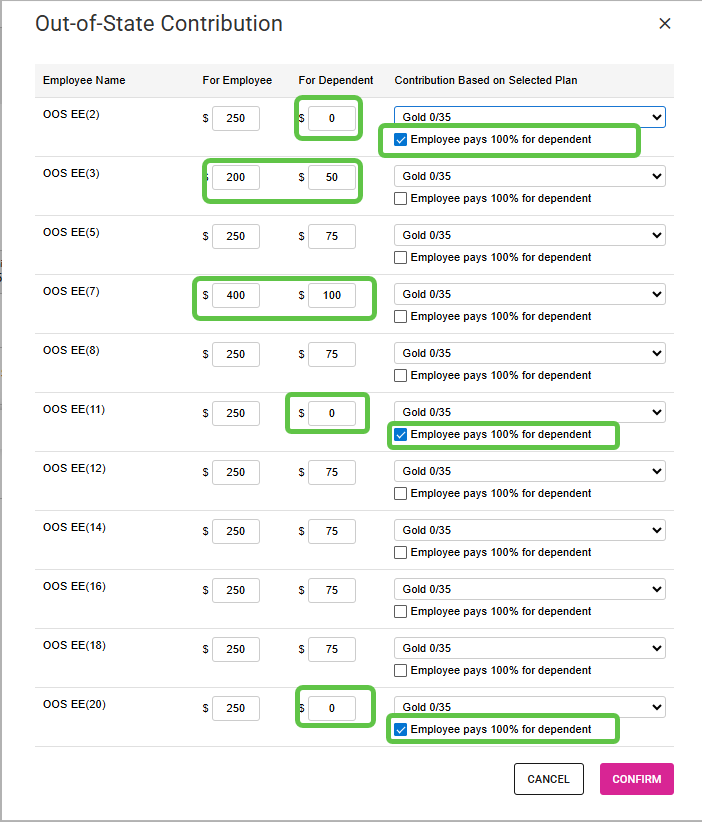
- Dollar Amount Contribution Type:
- The Dollar Amount can be changed for one or more employee and dependents.
- The Employee pays 100% for dependent can be selected for one or more employees and dependents.
- Percentage Contribution Type:
- Complete the selections/entries.
- Cancel/Confirm
- Click the Cancel button to reset the selections.
- Click the Confirm button to keep the selections.
- Discard Unsaved Changes/Save Changes
- Click the Save button to save the data.
- Click the Discard Unsaved Changes to reset all and not save.
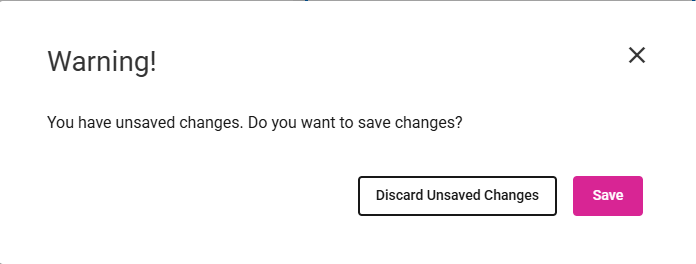
- If changes have not been discarded or saved, a warning message will appear when navigating away from the screen.
- Click Discard Unsaved Changes or Save.